
Quick answer
In HydroFast, exporting means generating a PDF report: open Progress, tap Reports and Insights, choose a type and date range, then save, share, or open the file. It is a readable record, not a spreadsheet and not a backup. HydroFast has no CSV export and no backup and restore, so a saved PDF will not put your history back after a reset.
Export, spreadsheet, and backup are three different things
Most frustration with tracking data comes from expecting one of these to behave like another. It is worth deciding which one you actually need before hunting for a button.
| Route | What it gives you | Good for | The catch |
|---|---|---|---|
| PDF report | A formatted document with totals, charts, and highlights for a date range you choose. | Keeping a record, printing, or handing a period to another person. | Cannot be read back into the app or opened as a spreadsheet. |
| Spreadsheet or CSV file | Raw rows of entries you can sort, filter, and chart yourself. | Your own analysis, or moving figures into another tool. | HydroFast does not produce CSV files. Not every tracker does. |
| Backup and restore | A copy of the app's own data that the same app can load again later. | Moving to a new phone without losing history. | HydroFast has no cloud sync and no backup and restore, so this is not available. |
The distinction that catches people out is the third row. A file sitting in your Downloads folder feels like insurance, but insurance means the app can read it back. A PDF cannot be re-imported by the app that produced it, so it protects the record of a period, not the data itself.
What is actually inside an exported report?
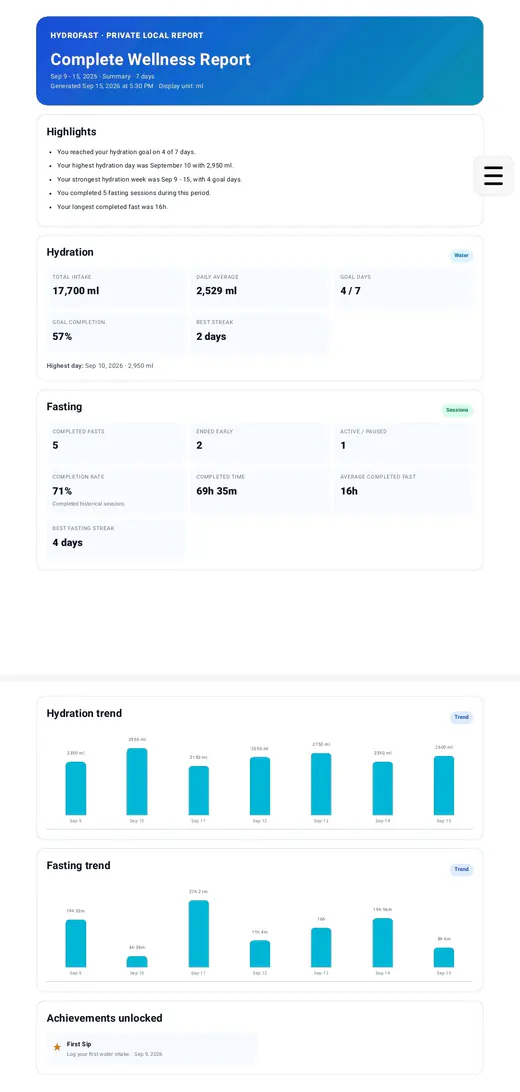
A HydroFast report is a formatted document covering one date range. It opens with the report type, the exact period, the number of days included, the time it was generated, and the display unit it used, so the file explains its own scope without you having to remember the settings you picked.
Depending on the type and the sections you keep, it can contain:
- Highlights written from your own recorded activity for that period
- Hydration totals, daily average, goal days, goal completion, and best streak
- Fasting completed sessions, sessions ended early, completion rate, total and average completed time, and the longest completed fast
- Hydration and fasting trend charts
- A day by day breakdown, when you ask for the detailed version
- Achievements unlocked inside the period, on a Complete Wellness report
Those highlights are generated from fixed templates using your own figures rather than any kind of interpretation, which is why they describe what happened and stop short of saying what it means. The amounts follow whichever unit you have chosen, so a report from an ounces setup reads in ounces. If that setting is not where you want it, the hydration tracker page covers switching between millilitres and US fluid ounces.
How to export a date range as a PDF
Reports start from the Progress tab rather than from Settings, which is the part most people hunt for. The flow is short:
- Open Progress and tap the Reports and Insights card at the top of the screen.
- Stay on Quick Report for a ready made weekly, monthly, or 30 day report, or switch to Custom Report to set everything yourself.
- Choose the type: Complete Wellness, Hydration, or Fasting.
- Pick the range. Last 7 Days, Last 30 Days, This Month, and Last Month are presets, or set exact start and end dates.
- Choose Summary or Detailed, then turn individual sections on or off.
- Generate the report, review the preview, and then save, share, or open the PDF.
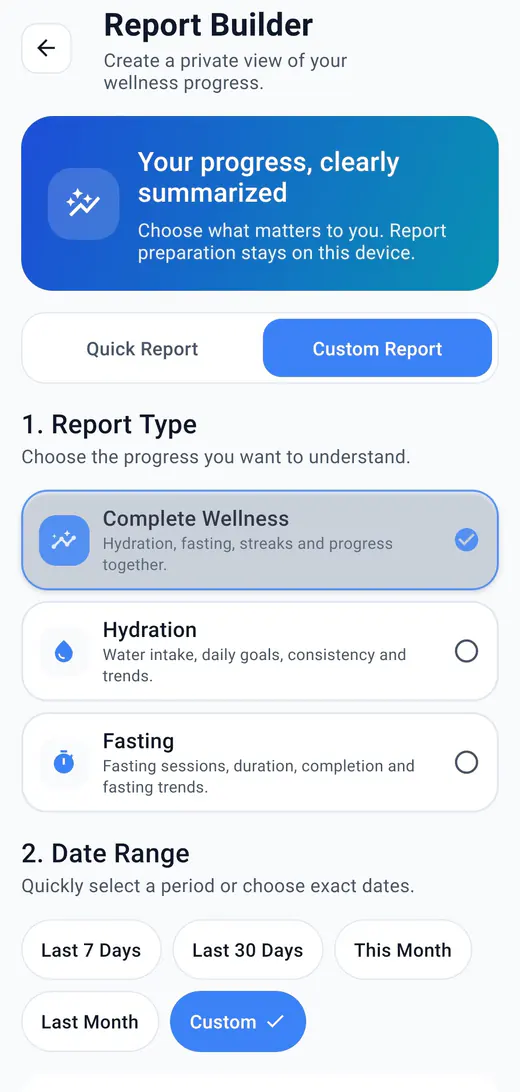
One range rule is worth knowing before you set dates: a Detailed report is capped at 365 days, because it lists every day individually. A Summary can reach further back. If a long range is refused, switching to Summary is usually what you want rather than trimming the dates.
Decide what goes in before you generate
The section switches are the difference between a document someone will actually read and one that runs to many pages. Charts, daily breakdown, streaks, comparison with the previous period, and achievements can each be left out.
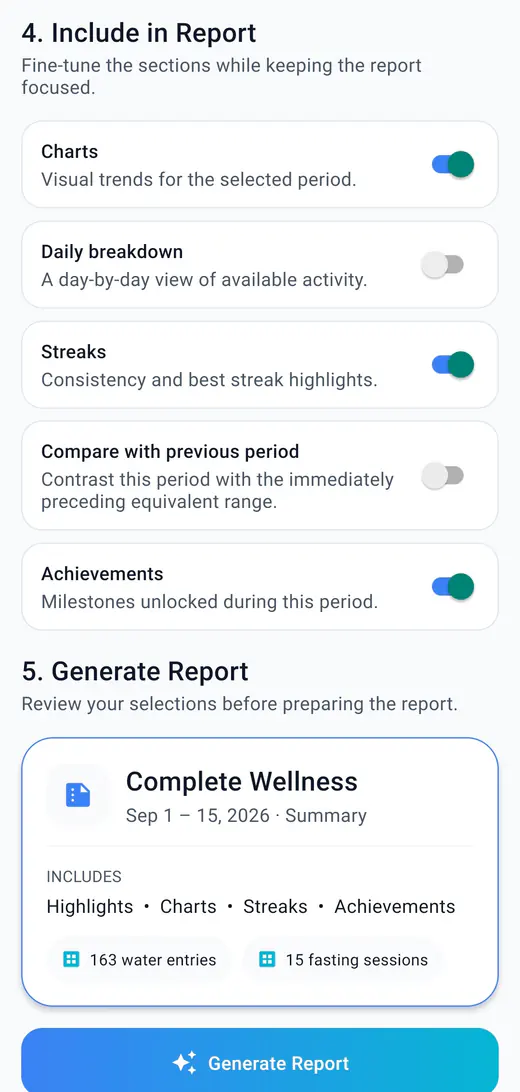
Two of these are worth a deliberate choice. Daily breakdown is what turns a summary into a full log, so keep it on when the point of the export is the individual entries. Compare with previous period adds the equivalent range immediately before the one you selected, which is the quickest way to see whether a month moved at all. Achievements appear on Complete Wellness reports.
Saving, sharing, and opening are separate decisions
Once a report is ready, nothing happens to it until you pick an action, and the three actions have genuinely different consequences.
- Save PDF writes the file through Android's own folder picker, so it lands in the folder you select and stays on the device.
- Share PDF hands it to another app through the Android share sheet. This is the only one of the three that sends the file somewhere else, and only to the destination you pick.
- Open PDF views it in a PDF viewer on the device.
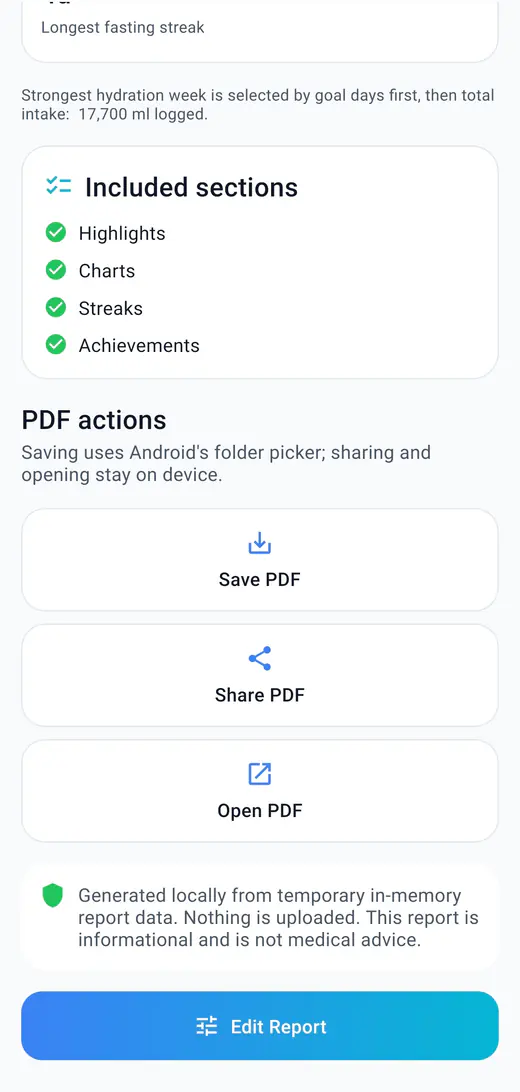
The report is prepared on the device from data already stored there, and the app states that nothing is uploaded during generation. That is worth knowing in both directions: your history is not being sent anywhere to build the file, and equally there is no copy sitting on a server that you could retrieve later. The HydroFast Privacy Policy sets out how a shared file is treated once it reaches another app.
What exporting will not do for you
Being clear about the limits saves a bad surprise later. Exporting a report does not:
- produce a CSV, spreadsheet, or image file, since neither CSV nor image export exists;
- let you load the figures back into HydroFast;
- move your history to a new phone;
- survive Reset All Data, cleared app storage, or uninstalling, as far as the app's own records go;
- keep a copy anywhere except the file you saved or shared.
HydroFast stores tracking data on the device and has no cloud sync and no backup and restore, so there is no second copy waiting to be recovered. The guide to using a water tracker without an account goes further into what local first storage means day to day, including what you give up in exchange for not having a login.
Before you switch phones or reset the app
If you are about to change device or clear the app, decide what you actually want to keep. The honest answer for most people is the shape of the period rather than every row.
- Export a Detailed report for the range you care about, while the data is still there.
- Save it somewhere that is not only on the phone you are replacing.
- Accept that the new install starts empty, and treat the PDF as a record of what came before rather than a restore point.
- If you are clearing data for privacy reasons, remember that a saved PDF is a separate file. Deleting app data does not remove it. The data deletion page covers what each deletion route does and does not cover.
Common mistakes when exporting tracking data
- Treating a saved PDF as a backup, then wiping the app and expecting the history to come back
- Exporting a Detailed report across a range longer than a year and wondering why it is refused
- Generating a Summary when you actually needed the day by day rows
- Sharing a report without reading it first, when it covers a period you would rather not send on
- Assuming the numbers will re-import into a spreadsheet because the file downloaded successfully
The first one is the expensive mistake. Everything else costs you a second attempt at the builder.
Read a report before you send it anywhere
A report can cover months of personal hydration and fasting activity, including the days you would rather not discuss. Open it before sharing, check the range is the one you meant, and pick the destination deliberately. Once a PDF reaches another app or service, that destination handles it under its own rules.
If you are taking one to an appointment, it is a record of what you logged and nothing more. The document says as much itself: it is informational and is not medical advice. HydroFast is a wellness and habit tracking app, so a report describes your own entries rather than assessing them.
A fuller walkthrough of the builder, the report types, and the preview lives on the HydroFast reports page, and progress insights covers the charts and history the reports are built from.
Exporting tracking data FAQ
How do I export my fasting and water tracking data on Android?
In HydroFast, open the Progress tab, tap the Reports and Insights card, choose a report type and a date range, pick the sections you want, then generate the report and use Save PDF, Share PDF, or Open PDF.
Can I export HydroFast data as a CSV or spreadsheet?
No. HydroFast exports a formatted PDF report. CSV export and image export are not features of the app, so a report is something to read rather than a data file to analyse in a spreadsheet.
Is a PDF report the same as a backup?
No. A PDF is a readable snapshot of a period. It cannot be loaded back into the app, so it does not protect your history if you reset the app, clear its storage, uninstall it, or move to a new phone.
Does HydroFast work offline?
Yes. Core water and fasting tracking works from data stored on your device, and reminders are scheduled locally. Downloading the app and sending a Help and Support request require internet access. There is no cloud sync or backup-and-restore feature.
Where does the exported PDF go?
Save PDF writes the file through Android's folder picker, so it lands wherever you choose. Share PDF passes it to another app through the Android share sheet, and Open PDF views it on the device without sending it anywhere.
Does exporting upload my tracking data anywhere?
No. The Report Builder states that preparation stays on the device, and the finished report notes that it is generated locally and that nothing is uploaded. A file only leaves the device if you choose to share it.
How far back can a report go?
A Detailed report, which includes the day by day breakdown, covers up to 365 days. A Summary report can cover a longer stretch of the history stored on your device.