
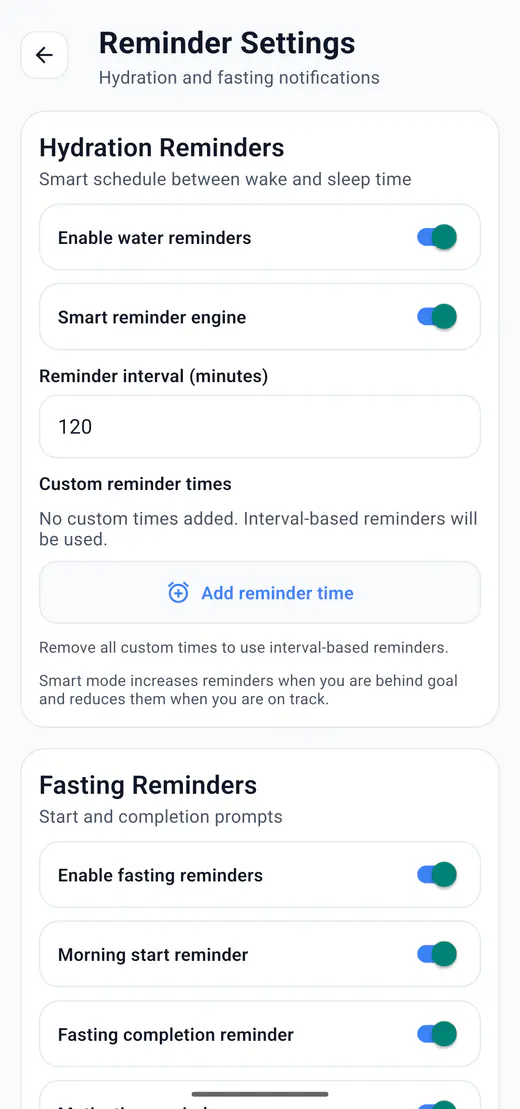
How HydroFast fasting reminders work
HydroFast is a currently free Android fasting reminder app with no account required. Its Morning start reminder uses your profile’s wake time. The completion reminder follows an active fasting session. Both need the relevant switches enabled and Android notification permission.
Custom reminder times and the app’s Snooze 15 min action belong to water reminders. They do not set or postpone a fasting-start alert.
Set up fasting reminders in HydroFast
After installing the app and completing the local profile setup:
- Save a fasting plan. Open Settings → Preferred Fasting Plan and select the plan you want to track. If you previously chose to decide later, save a plan before expecting a morning start reminder.
- Open the reminder controls. Go to Settings → Reminder Settings and find the Fasting Reminders section.
- Choose the alerts. Turn on Enable fasting reminders. Enable Morning start reminder, Fasting completion reminder, or both. Motivation reminders are optional.
- Review your preferences. Use Save Reminder Preferences. The individual switches apply as you change them; custom times in the Hydration Reminders section configure water alerts.
- Allow Android notifications. Accept the permission request when shown. If permission was previously denied, find HydroFast in your phone’s notification settings and enable it there.
- Start a session when you begin. Return to Fast and start the selected plan. A completion alert needs an active session with time remaining; saving a plan alone does not create it.
Check your wake time under Settings → Edit Profile if the morning prompt arrives at an unexpected hour. Keep it accurate for your daily routine; changing it also affects other reminders. HydroFast does not offer a separate custom fasting-start alert time.
What determines each reminder’s time?
| Reminder | Timing | What to check |
|---|---|---|
| Morning start | Your profile’s wake time. | A saved fasting plan and the fasting/start switches. This is a prompt; it does not start a session automatically. |
| Fast completion | The remaining duration of the active session. | The fasting/completion switches and an active, unpaused session with time left. |
| Motivation | Two hours after your profile’s wake time. | The separate Motivation reminders switch. It is a general habit prompt. |
These are scheduled notification times, not a guarantee of exact delivery. If the completion alert and morning prompt would occupy the same clock minute, HydroFast gives the completion alert priority during scheduling.
Example: a 16:8 session starting at 8:00 PM
If you start a 16-hour session at 8:00 PM, its target completion is noon the following day, assuming no pauses or clock changes. Enable the completion reminder to request an alert for that target. Selecting 16:8 does not create an 8:00 PM start notification: the morning prompt still uses your wake time.
If you need a fixed evening cue, use a separate phone alarm and start the HydroFast timer when you begin. If you forgot to record the start, follow the earlier-start instructions. The times above illustrate timer behavior, not a recommended fasting routine.
What happens when you pause or end a fast?
Pausing cancels its scheduled completion reminder. Resuming schedules a new one using the remaining fasting time. Ending or deleting the session removes its pending completion reminder. A new alert is not scheduled for a session that has already reached its target.
Fasting reminders not working on Android?
Start with the symptom you see. A notification that arrived silently needs a different check from one that was never scheduled.
| Symptom | Check first | Next step |
|---|---|---|
| No fasting alerts | Android permission and Enable fasting reminders. | Allow HydroFast notifications, then review the individual reminder switches. |
| No morning prompt | Saved plan, Morning start reminder, and profile wake time. | Save a plan if none is selected. Check the next wake-time occurrence. |
| No completion alert | An active session with time left and Fasting completion reminder enabled. | Check whether the session is paused, ended, or already complete. |
| Alert visible, no sound | Silent notification settings, volume, and Do Not Disturb. | Review Android’s sound and interruption controls for HydroFast. |
| Alert arrives late | App battery/background restrictions. | Review your phone manufacturer’s guidance and check the next notification. |
| Unexpected hour | Profile wake time for start alerts; session state for completion alerts. | Check the phone’s clock/time zone after travel and reopen HydroFast. |
Find the Android notification controls
Open your phone’s Settings → Notifications → App notifications → HydroFast. Allow notifications and review any available categories, sound, and lock-screen options. Menu names vary by phone and Android version. You can also touch and hold an existing notification to find its settings. See Google’s Android notification guide.
Separate silent alerts from delayed alerts
Do Not Disturb and other modes can silence or filter notifications. On a Pixel, review Modes and Do Not Disturb. Other manufacturers use their own menus.
Battery settings can also delay notifications. Google recommends keeping battery optimization enabled in general; avoid switching it off for every app as a blanket fix. Review HydroFast’s app-specific background settings if delays persist. Google’s Pixel battery guidance explains the tradeoff.
Recheck without losing your history
Open HydroFast after a restart or settings change so it can refresh its state and local schedule. Review the Fast screen and the next relevant reminder. Avoid clearing app storage or reinstalling as an initial troubleshooting step: HydroFast has no backup-and-restore feature.
If the issue continues, contact support with your app version, Android version, phone model, reminder type, expected time, and what actually happened. Mention whether the fast was paused and which checks you tried.
Start Fast, End Fast, and the snooze difference
Yes. Start Fast uses a saved fasting plan, and End Fast ends the current active or paused session. If no plan is saved, open HydroFast and choose one first. Receiving a notification does not itself start a fast; use an action or the app controls.
HydroFast's Snooze 15 min action is for hydration reminders. Fasting notifications offer Start Fast and End Fast instead. Android may provide its own notification snooze control, depending on the device; that is separate from HydroFast's water-reminder action.
Expand a notification if its actions are hidden. A body tap opens the relevant app screen; an action button performs its named task. For water intervals, custom times, and hydration snoozing, see the water reminder guide.
Does HydroFast work offline?
Yes. Core water and fasting tracking works from data stored on your device, and reminders are scheduled locally. Downloading the app and sending a Help and Support request require internet access. There is no cloud sync or backup-and-restore feature.
Local scheduling does not bypass Android permissions or battery controls. Test delivery on your own phone before relying on a reminder for your routine.
Fasting reminder FAQ
How are HydroFast fasting reminders timed?
The Morning start reminder uses your profile's wake time and requires a saved fasting plan. The completion reminder follows the remaining time of an active fast. Enable fasting reminders and the individual reminder switches, and allow Android notifications. There is no separate custom fasting-start reminder time picker.
Can I set a reminder for 16:8 fasting?
Yes. Select 16:8, enable fasting reminders and the completion reminder, then start a session. Its completion alert follows the tracked remaining time. The separate Morning start reminder uses your profile's wake time; choosing 16:8 does not set a custom evening start alert.
Why did my fasting completion reminder not arrive?
Check that the session was active with time remaining, fasting and completion reminders were enabled, and Android allowed HydroFast notifications. Pausing cancels the scheduled completion alert; resuming schedules it from the remaining time. Also review silent notification settings, Do Not Disturb, and battery restrictions.
Can I start or end a fast from a notification?
Yes. Start Fast uses a saved fasting plan, and End Fast ends the current active or paused session. If no plan is saved, open HydroFast and choose one first. Receiving a notification does not itself start a fast; use an action or the app controls.
Can I snooze a fasting reminder?
HydroFast's Snooze 15 min action is for hydration reminders. Fasting notifications offer Start Fast and End Fast instead. Android may provide its own notification snooze control, depending on the device; that is separate from HydroFast's water-reminder action.
Does HydroFast work offline?
Yes. Core water and fasting tracking works from data stored on your device, and reminders are scheduled locally. Downloading the app and sending a Help and Support request require internet access. There is no cloud sync or backup-and-restore feature.
Is HydroFast free to use?
Yes. HydroFast is currently free to use on Android, with no purchase required for water tracking, fasting timers, reminders, or progress history.
About this guide
Published by HydroFast’s developer. Instructions were checked against the app’s reminder settings and scheduling implementation on September 13, 2026. The screenshot is an existing app capture. This guide is not a delivery-reliability test across Android devices. HydroFast is a wellness and habit tracker, not a medical service or supervised fasting program.